Why does Google show a warning when connecting Zerofinger?
Google verification and our CASA security assessment are in progress. Google has not completed the relevant review. You may see an extra warning before connecting Gmail.
You can explore Zerofinger without granting Google permissions. Demo Mode uses fictional email and accounts; messages sent there stay inside the demo.
Try the demo insteadWhat you might see
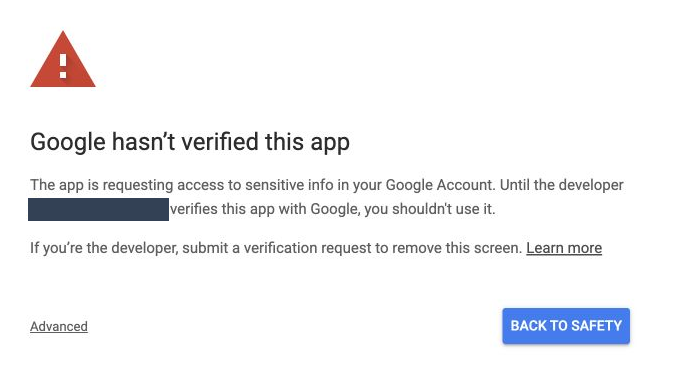
Google may say it has not verified the app, show a tester notice, or block the connection. The wording and available actions vary by account, organization and review status. A warning is a reason to review access carefully; pending review does not prove an app is harmless.
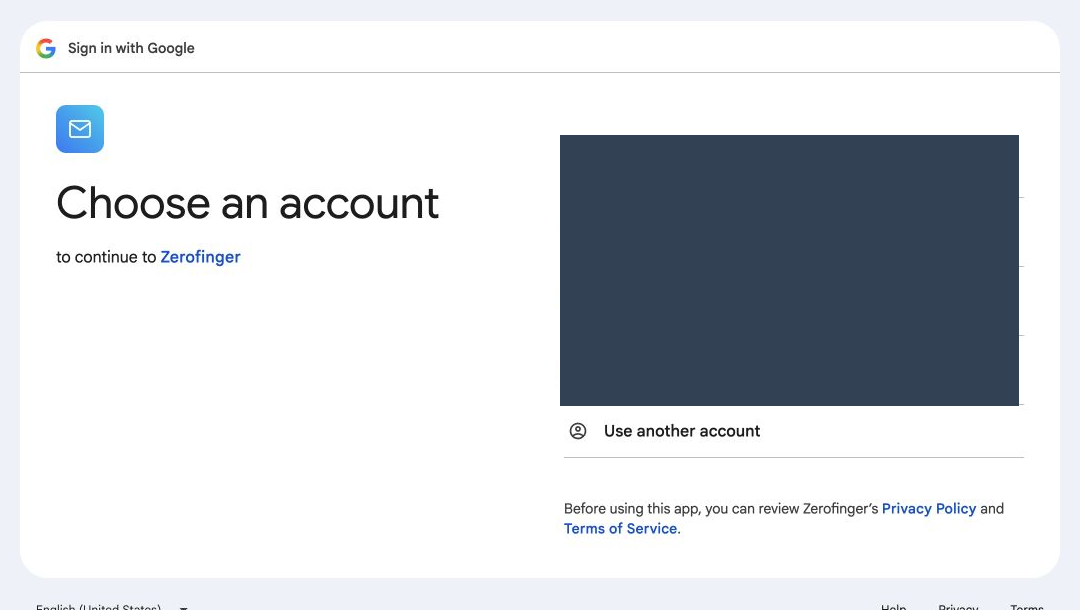
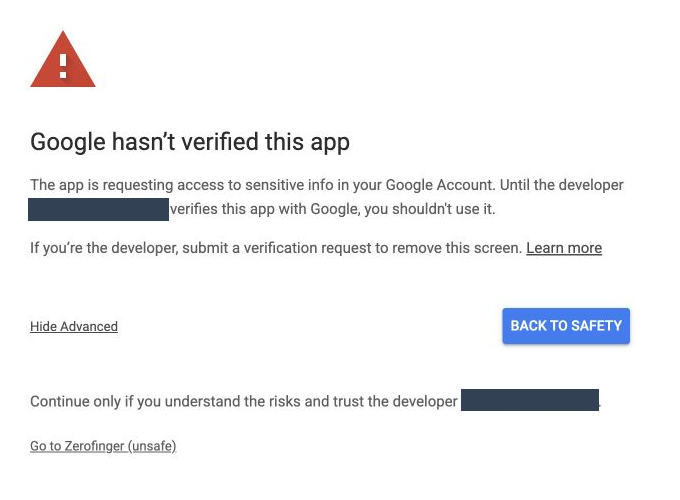
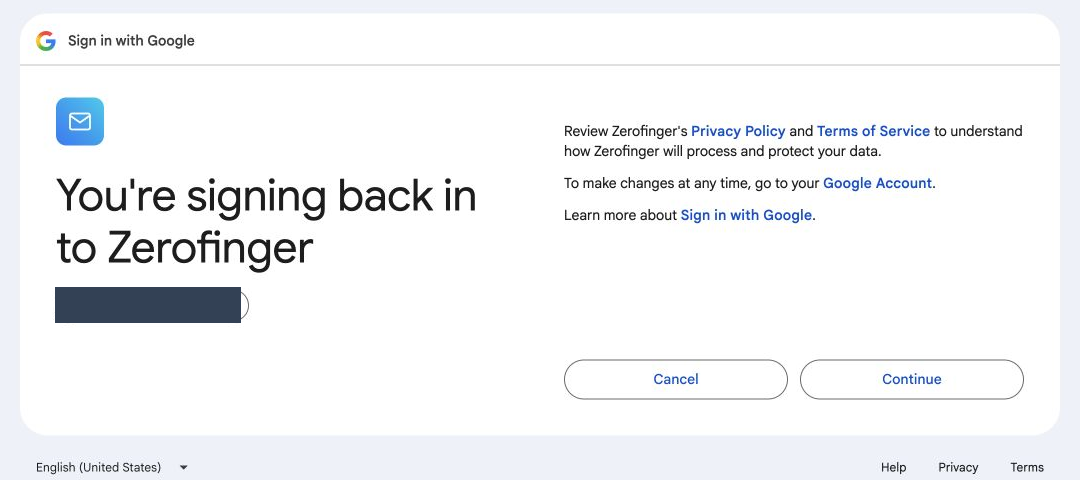
These are genuine captures from Zerofinger's Google connection on October 14, 2026. Personal account details are covered. We stopped before confirming access. Your screens may differ.
1. Choose your account
2. Read the warning
3. Review additional information
4. Review before confirming
Your choices, step by step
- Choose the Google account you intend to connect. Check the app name and the account before proceeding.
- Read Google's warning. Choose Back to safety or go back if you are unsure. You can use the demo instead.
- Only if Google offers it, Advanced may show more information and a continuation link. Continue only if you trust Zerofinger and understand that you are granting sensitive mailbox access. Some accounts have no continuation option.
- On the permissions screen, review every requested permission. Cancel to stop without granting new access, or explicitly approve the permissions you understand and want to grant.
If Google blocks access, stop. Wait for verification or contact your Google Workspace administrator about your organization's policy. Do not disable browser protections.
What permissions does Zerofinger request?
Normal Gmail connection requests your basic profile and email address, plus Gmail access to read mail, create and send replies, and organize messages, including moving them to Trash. The gmail.modify permission excludes immediate permanent deletion that bypasses Trash. It is a restricted Google scope.
Calendar is optional and uses a separate connection: it requests your calendar list, event access and availability information. Review the exact consent screen before allowing it.
Google's Gmail permission referenceWhat is being reviewed?
Brand verification checks the app's identity and presentation. Sensitive and restricted scope verification reviews its requested access and use of Google data. CASA is a separate security assessment required for relevant uses of restricted data through servers. An organization's access policy is another independent decision.
An incomplete review, a scope mismatch, a testing limit or an organization restriction can lead to different warnings. This page does not identify the cause for your individual account or promise when verification will finish.